DreamBot on a Raspberry Pi
This is a short guide walking you through the process of setting up the DreamBot Old School RuneScape Botting Client on a Raspberry Pi. While this guide uses a Raspberry Pi Model 3 B+, the steps are near identical on later models of the Pi. Note, that you’ll want a Raspberry Pi 4 or later with at least 2GB of RAM to run DreamBot with reasonable performance.
- Download and flash the latest Raspberry Pi OS image to a microSD card. You can use Raspberry Pi Imager to simplify this process. Here’s a video showing how to do this:
- Login to your Raspberry Pi and open a terminal.
- Update the system and install the latest Java Runtime Environment:
sudo apt update && sudo apt upgrade -y sudo apt install default-jre -y - Download the latest DreamBot client JAR file:
curl https://downloads.dreambot.org/launcher/Launcher.jar -o Launcher.jar - Run the DreamBot client:
java -jar Launcher.jar
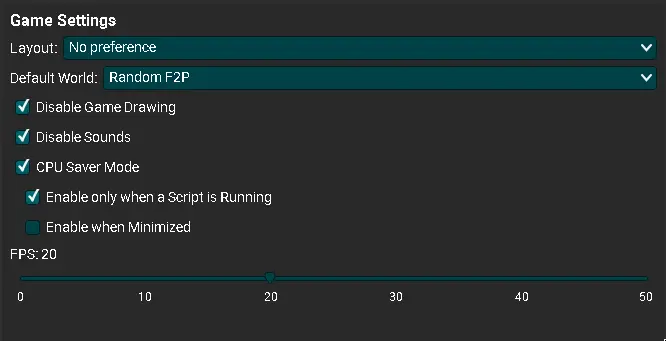
Optionally, you can adjust a couple of DreamBot client settings to improve performance. The recommended Game Settings to adjust are:
- CPU Saver: Check this box and the “Enable only when Script is Running” sub-option.
- Adjust the FPS: Move the slider left or right to decrease/increase FPS. A lower FPS will reduce CPU usage.
- Disable Game Drawing: Check this box to disable game drawing. This will make it so you can’t see what the bot is doing so only use this option with reliable scripts!
Here’s a screen cap of the recommended settings: